How to spotlight on Zoom
To spotlight on Zoom, hover over the person's video, click the ellipsis (three dots) and choose Spotlight for everyone. You must be the host or a co-host, and a meeting needs at least three participants with video on.
How to spotlight someone on desktop
These steps are the same on Windows, macOS and Linux.
- Start the meeting or webinar as host, or join and get assigned co-host.
- Hover over the person's video and click the ellipsis (three dots).
- Click Spotlight for everyone.
Everyone now sees that person in the primary speaker view. Other participants stay visible at the top of the meeting window.
To put more people on stage, repeat the steps and click Add spotlight. Zoom allows 9 at once. For panels, see spotlighting multiple people on Zoom.
How to spotlight on a phone or tablet
- In the meeting controls, tap More, then Participants.
- Tap the person's name.
- Tap Spotlight for everyone.
To add more people, tap another name and tap Add spotlight.
How to remove a spotlight
- One person, on desktop: click Remove spotlight in the top-left corner of their video.
- Several people, on desktop: click View in the top-right corner of the window, then Remove all spotlights.
- On a phone: open Participants, tap the name, tap Remove spotlight. Repeat for each person.
What are the rules for spotlighting?
Meetings and webinars have different minimums. This table follows Zoom's spotlight article.
| Meeting | Webinar | |
|---|---|---|
| Who can do it | Host or co-host | Host or co-host |
| Minimum | 3 or more participants with video on | 2 or more panelists, at least one with video on |
| Maximum on stage | 9 | 9 |
| Not available | Breakout rooms (per Zoom Community answers) | Webinar Backstage area |
What goes wrong during a live event
Check these four before you go live.
The menu option is missing
Zoom counts cameras, so a full room with two videos on still doesn't qualify in a meeting. Ask a third person to start video. If the option is still missing, our guide to fixing Zoom spotlight when it isn't working goes through each cause.
You're running with exactly three cameras
One church host reported on Zoom's Community that the spotlight disappeared when a participant logged off, leaving the projected screen showing other participants. The workaround suggested there was to keep an extra account logged in. Keeping a spare camera on gives you the same margin.
The speaker's camera is off
The person you spotlight needs their video on. Ask them to start it before you introduce them.
Your webinar speaker is an attendee
Attendees can't be spotlighted. Promote them to panelist first.
Will the spotlight show in your recording?
It depends on how you record and how many people are on stage. Zoom's recording layouts article is specific here.
| Recording | What it captures |
|---|---|
| Computer recording | The view of the person recording. Speaker view captures spotlighting. |
| Cloud, gallery layout, 2 to 9 spotlighted | The spotlight is captured. |
| Cloud, gallery layout, 1 spotlighted | The spotlight is not captured. |
| Cloud, during screen sharing | The shared content. If video tiles are recorded, only the active speaker is shown. |
Zoom describes spotlight as often used for a keynote speaker, and one speaker is the case the cloud gallery layout misses. For a one-speaker event, consider a computer recording in Speaker view. Either way, run a short test recording first.
Set cloud layouts before the session, in the web portal under Settings, then Recording & Transcript. Zoom says changes made after the meeting begins won't apply.
Spotlight or pin?
Spotlight changes the view for everyone. A pin changes it on your device only. See Zoom spotlight vs pin.
When you need more than Zoom's menu
For one speaker, a class or a short meeting, Zoom's menu is all you need, and you don't need an app.
Spotlight gets harder when the stage keeps changing: a panel with rotating speakers, or an interpreter who must stay visible while speakers change. Zoom's spotlight works, but it can fail without explaining why, and the host is busy running the event.
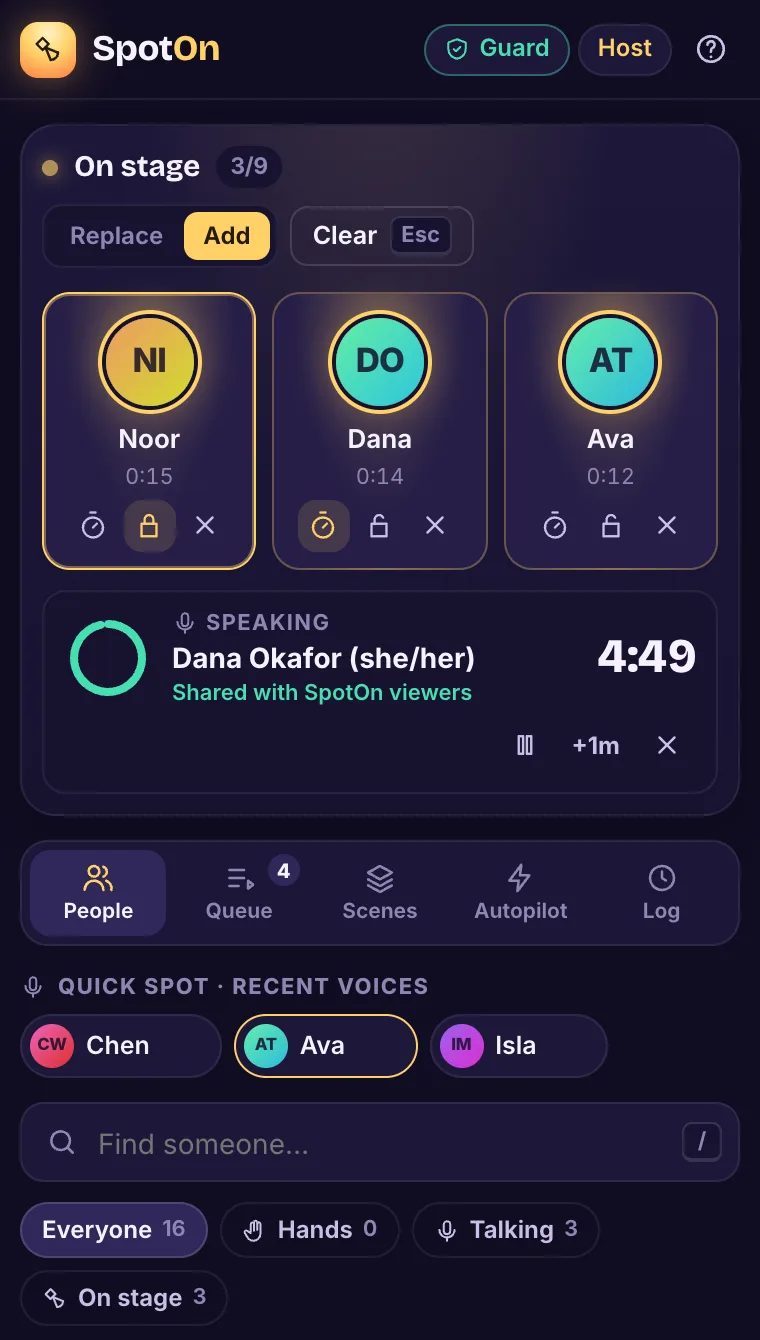
SpotOn is our free Zoom App for that kind of event. It runs in a side panel on the Zoom desktop client, with a speaker queue and saved scenes. When Zoom refuses a spotlight, it tells you why in plain words. Its Stage Guard is built to return locked people to stage if they drop and rejoin. Zoom's rules still apply, and it doesn't run on mobile or Zoom Rooms. The SpotOn user guide has the details.
Frequently asked questions
Where is Spotlight for everyone in Zoom?
On desktop, it's in the menu behind the three dots on a person's video. On a phone, tap More, then Participants, then the person's name.
Can a co-host spotlight on Zoom?
Yes. Zoom lists host or co-host privileges as the requirement, in both meetings and webinars.
Can you spotlight yourself on Zoom?
At least one third-party guide says yes: open the menu on your own video and choose Spotlight for everyone. Zoom's article doesn't address it directly, so try it before the event. Zoom's separate Show me as an active speaker when I talk setting only changes what you see on your own screen.
How do you enable spotlight on Zoom?
Zoom's requirements don't list a setting to switch on. The option depends on your role, your app version and the number of cameras on. Update the app if you've met the other two.
Can you spotlight while sharing your screen?
Yes, Zoom says spotlighting can also be done during screen sharing. Check your recording layout too, since cloud recordings handle shared screens differently.