Zoom keyboard shortcuts for Zoom meetings on Windows and Mac
The Zoom keyboard shortcuts hosts reach for first are Alt+M on Windows or Command+Control+M on Mac to mute everyone except the host, Alt+U or Command+U for the participants panel, and Alt+R or Command+Shift+R to record. This page is about Zoom meetings. For making a web page bigger, see browser zoom.
Zoom shortcuts for hosts running a meeting
These come from Zoom's hot keys and keyboard shortcuts article, checked on 6 November 2026. Zoom marks only the mute-everyone keys as host-only. The rest are here because they matter most when you're running the room.
| Action | Windows | Mac |
|---|---|---|
| Mute everyone except the host | Alt+M | Command+Control+M |
| Unmute everyone except the host | Alt+M | Command+Control+U |
| Participants panel | Alt+U | Command+U |
| In-meeting chat panel | Alt+H | Command+Shift+H |
| Invite window | Alt+I | Command+I |
| Copy invite link | Alt+Shift+I | Command+Shift+I |
| Computer recording, start or stop | Alt+R | Command+Shift+R |
| Cloud recording, start or stop | Alt+C | Command+Shift+C |
| Pause or resume recording | Alt+P | Command+Shift+P |
| Screen share, start or stop | Alt+S | Command+Shift+S |
| Pause or resume screen share | Alt+T | Command+Shift+T |
| Begin remote control | Alt+Shift+R | Control+Shift+R |
| Revoke remote control | Alt+Shift+G | Control+Shift+G |
| Prompt to end or leave | Alt+Q | Not listed |
| Focus the meeting controls | Ctrl+Alt+Shift | Not listed |
On Windows, Zoom says Alt+S and Alt+T only work when the meeting toolbar has focus. Ctrl+Alt+Shift moves focus there.
On Mac, Zoom lists Command+Shift+C twice: for cloud recording and for recording a new clip. Before a recorded event, check which one your settings use.
Everyday shortcuts in a Zoom meeting
| Action | Windows | Mac |
|---|---|---|
| Mute or unmute yourself | Alt+A | Command+Shift+A |
| Hold to unmute for a moment | Not listed | Space |
| Start or stop your video | Alt+V | Command+Shift+V |
| Switch camera | Alt+N | Command+Shift+N |
| Raise or lower your hand | Alt+Y | Option+Y |
| Speaker or gallery view | Alt+F1 or Alt+F2 | Command+Shift+W cycles views |
| Previous or next gallery page | PageUp or PageDown | Control+P or Control+N |
| Full screen | Alt+F | Command+Shift+F |
| Reactions panel | Ctrl+Shift+Y | Command+Shift+Y |
| Read active speaker's name | Ctrl+2 | Command+2 |
What Zoom has no default shortcut for
Zoom's published list has no entry for these host jobs:
- Spotlighting or pinning someone
- Admitting people from the waiting room
- Opening breakout rooms or launching a poll
- Locking the meeting or removing a participant
Hosts have asked for a spotlight shortcut since at least May 2020, when a Zoom staff reply logged it as a feature request. So spotlighting stays a mouse job, often while the participant list moves under your cursor. We think it's the host action that most deserves a key, because it's what the audience sees change.
One host in the Zoom Community thread on admitting people describes hovering over the Admit button for every arrival. A reply there points Stream Deck users to ZoomOSC and Mac users to ZoomCuts, so outside tools are an option if you have the setup for them.
The steps for doing it by mouse are in how to spotlight on Zoom. If you only need a bigger view on your own screen, pin may suit you better than spotlight.
How to view and change Zoom shortcuts
- Sign in to the Zoom desktop app.
- Click your profile picture, then Settings.
- Click Keyboard shortcuts.
- To change one, click the shortcut and press the keys you want.
- To make one work when Zoom isn't in focus, check the option next to it. Only some shortcuts can be global.
Your list may differ from the tables above. Zoom notes that some shortcuts need a newer version than its minimum, so update first if one is missing.
Zoom meetings or browser zoom: the same keys do different jobs
If you came here to make a web page bigger, that's your browser's zoom, not the Zoom app. The keys overlap.
| Where you are | Ctrl or Command with + or - |
|---|---|
| Chrome | Zooms the page |
| Zoom desktop app | Changes the chat display size |
| Zoom Web App in a meeting | Zooms shared content (Zoom lists Ctrl) |
SpotOn's panel hotkeys for the spotlight
SpotOn is our free Zoom App, a side panel for hosts and co-hosts. It adds keys for spotlighting, one of the gaps above, but only inside its own panel.
These only work while the SpotOn panel has focus. Click anywhere in the panel first. They aren't global shortcuts, and they pause while you're typing in a field.
| Key | What it does in the SpotOn panel |
|---|---|
| / | Search people |
| 1 to 9 | Spotlight that row in the People list |
| N | Spotlight the next speaker in the queue |
| Esc | Clear the stage, locked people stay |
| Shift+Esc | Clear everyone, including locked people |
| A | Switch between Replace and Add |
| Space | Pause or resume the speaker timer |
| G | Turn Stage Guard on or off |
| D | Turn the auto-director on or off |
| ? | Open the cheat sheet |
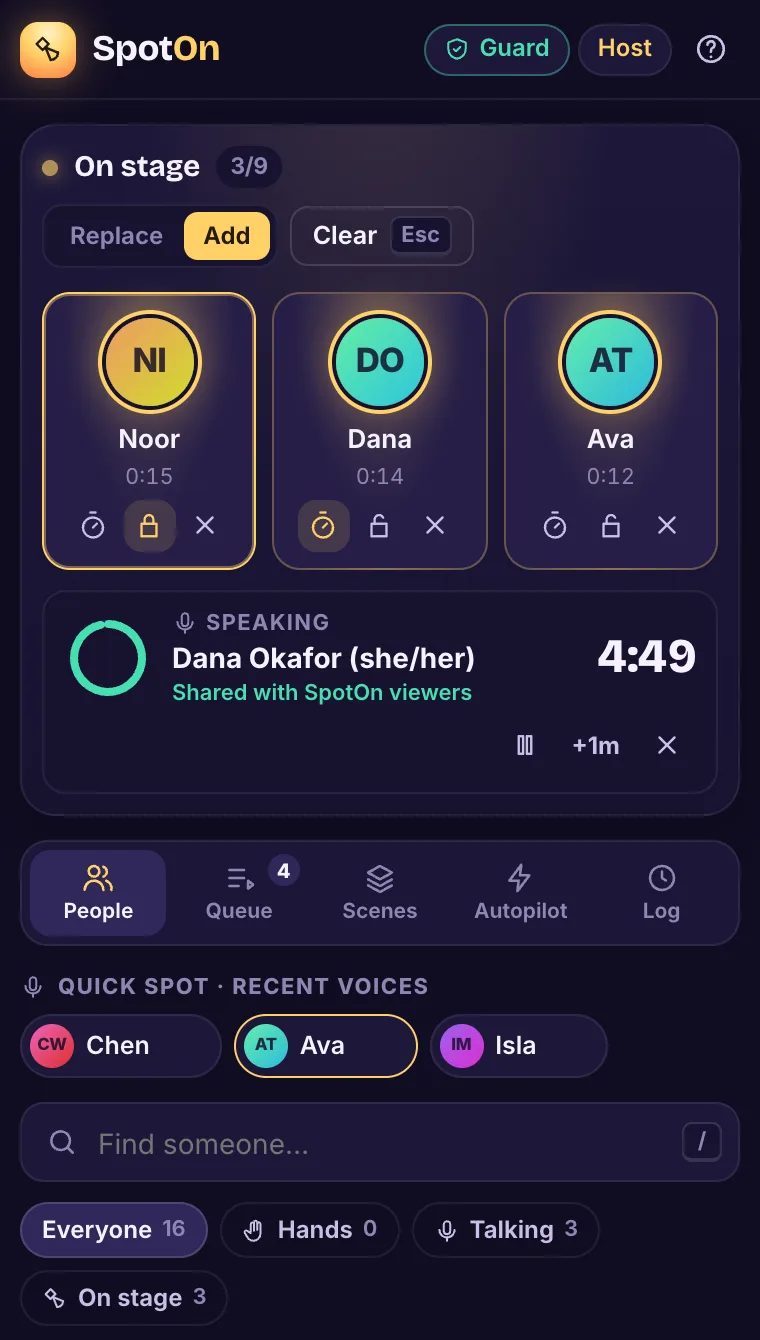
Zoom's rules still apply. Spotlighting needs a host or co-host and three or more participants with video on in a meeting, and pressing a key doesn't change that. SpotOn runs in the Zoom desktop client on Windows and macOS, not on mobile or Zoom Rooms. The SpotOn user guide covers setup, and you can try the hotkeys on the home page without Zoom.
When you don't need SpotOn
If you spotlight one keynote and leave it there, the mouse is fine. If your jobs are muting, recording and sharing, Zoom's own shortcuts already cover them, and SpotOn adds nothing there. A Stream Deck setup may be better served by the outside tools above.
Frequently asked questions
Is there a keyboard shortcut to spotlight someone in Zoom?
Not in Zoom's published shortcut list, checked in November 2026. Hosts use the participant's menu instead. SpotOn adds number keys for this, but they only work while its panel has focus.
What is the Zoom shortcut to mute all participants?
Alt+M on Windows mutes or unmutes everyone except the host. On Mac, Command+Control+M mutes them and Command+Control+U unmutes them. Zoom makes these available to the host only.
Why isn't my Zoom keyboard shortcut working?
Zoom may not be in focus, unless you made that shortcut global in settings. On Windows, the screen share keys also need the meeting toolbar to have focus. Some shortcuts need a newer Zoom version, so update and check again.
Can Zoom shortcuts work when Zoom isn't the active window?
Some can. In Keyboard shortcuts settings, check the option next to a shortcut to make it global. Not every shortcut offers this.
Do Zoom keyboard shortcuts work on an iPad?
Yes, with a keyboard attached, though the list is short. It covers your audio and video, the chat, the participants list, minimizing the meeting and closing the front window.
Do SpotOn's hotkeys work from the Zoom meeting window?
No. Click into the SpotOn panel first, because the keys only work while it has focus. They also pause while you type in a field.