Zoom timer: your options, from meeting clocks to speakers
A Zoom timer comes in two forms: meeting timers, which only you can see, and Zoom's free Timer app, which counts down for you or for all participants and can queue several timers. For many hosts, the Timer app is the right answer. If you need a clock the audience can't see, or a timer tied to the spotlight, look at Stagetimer or SpotOn.
- How do I turn on Zoom's meeting timer?
- How do I use the Zoom Timer app?
- Can Zoom time each speaker?
- Zoom Timer vs Stagetimer vs SpotOn
- Which timer should you use?
- Frequently asked questions
How do I turn on Zoom's meeting timer?
Meeting timers are built into the Zoom app, and they're private. Zoom's help article on meeting timers says they're only visible to you. That helps you keep the meeting on schedule, but it won't help a speaker.
- Sign in to the Zoom desktop app.
- Click your profile picture, then Settings.
- Open the Meetings & webinars tab.
- Under In-meeting and in-webinar experience, turn on Show meeting timer.
The timer sits in the top-right corner of the meeting window. Click the down arrow next to it to switch modes.
- Meeting duration counts from the moment you joined, so each person's number is different.
- Time remaining counts down from the scheduled length. Zoom doesn't offer it for instant meetings, your Personal Meeting Room or recurring meetings with no fixed time.
On a phone, the setting is called Show my connected time, under Settings and then Meetings. It shows how long you've been connected.
How do I use the Zoom Timer app?
Timer is Zoom's own app, with a countdown and a stopwatch that you can show to the whole meeting. To add it, sign in to the Zoom App Marketplace, search for "Timer" and click Add. It then appears under Apps in the desktop client. Your admin may need to approve it first.
It needs the desktop client on Windows or macOS. Zoom's Timer app article says version 5.14.10 or higher, while the Marketplace listing says 7.0.5 or later, so update before your event.
- Open Timer during the meeting and choose the Timer tab.
- Enter a time or pick a preset.
- Click the audio icon if you want the alarm on or off.
- Use the Show timer to all toggle to choose whether only you or all participants see it.
- Click Start.
Zoom says the person who set the timer gets a large countdown in the corner of their video tile, and a smaller copy appears in the top right of the meeting window. According to the listing, both turn red when time is up, and the alarm sounds if you left it on.
Can Zoom time each speaker?
Yes, up to a point, and for many hosts that point is far enough. Zoom's Marketplace listing for Timer describes a queue: you prepare a series of timers at the start and move from one to the next as each session or speaker finishes. Zoom's help article doesn't give steps for it, so try it in the app before the event.
If everyone can share one clock, as in a class, a team meeting or a round of short updates, stop here. You don't need anything else.
Ten minutes is an opening offer to some speakers, so you may want more than a shared clock. Three limits are worth checking.
- Visibility is all or nothing. One host on the Zoom Community asked in 2022 for a timer only the speaker and host could see. Today's help article still describes the same two choices: only you, or all participants.
- Zoom's pages for Timer don't say it moves the spotlight or skips someone who hasn't arrived. Those stay your job.
- Neither page describes muting anyone at zero. The timer tells people the time is up, and someone still has to act on it. Our guide to moderating a panel discussion on Zoom covers that part.
Zoom Timer vs Stagetimer vs SpotOn
Prices below are from Stagetimer's pricing page on 2026-11-06.
| Meeting timers | Zoom Timer app | Stagetimer | SpotOn | |
|---|---|---|---|---|
| Who sees the clock | Only you | Only you, or all participants | Anyone you send a link to, or everyone if you screen share it or add it as a camera | Host panel, plus a badge for participants with SpotOn open |
| Per-speaker timing | No | Queue of timers | Agenda with CSV import, messages to speakers | Queue with minutes per speaker |
| Moves the spotlight | No | Not described by Zoom | Not covered in its Zoom guide | Yes, that's its main job |
| Reaches everyone | No | Yes, with the toggle on | Yes, by screen share or camera | Chat announcements only (who's on and who's next, no countdown) |
| Runs on | Zoom desktop and mobile, with fewer options on mobile | Zoom desktop, Windows or macOS | A web browser, plus OBS for the camera method | Zoom desktop, Windows or macOS. Not mobile or Zoom Rooms |
| Cost | Part of the Zoom app | Free to add | Free plan with limits. Pro $210 a year, Premium $420 a year, or a 30-day license | Free. No account, no payment |
Stagetimer
Stagetimer is a dedicated timing tool, and on timing alone it goes further than SpotOn does. You control the clock from any device and send people a viewer link, an agenda link or a moderator link. You can also message speakers while they talk. If a crew runs your event, or remote presenters need a clock that the audience doesn't see, look here first.
The trade-off is that the clock lives outside Zoom unless you put it there. Stagetimer's Zoom guide gives two ways. Screen sharing is simple, but it uses your share slot, so you can't show slides at the same time. An OBS virtual camera keeps the timer visible as its own participant during other people's shares, and it takes more setup. The free plan allows 3 timers and 3 live connections per room, which suits a small event. Non-profits can ask about a 20% discount.
SpotOn
We make SpotOn, so weigh this section with that in mind. It's a free Zoom App for hosts and co-hosts, in meetings and webinars, and its timer exists to serve the spotlight. A host running a speaker rotation shouldn't have to be the stagehand too.
You add speakers to a queue before they've joined and set minutes for each. Then you press Spotlight next or N. SpotOn skips people who aren't there and can move on automatically when time is up. Space pauses the timer. The SpotOn user guide covers these options.
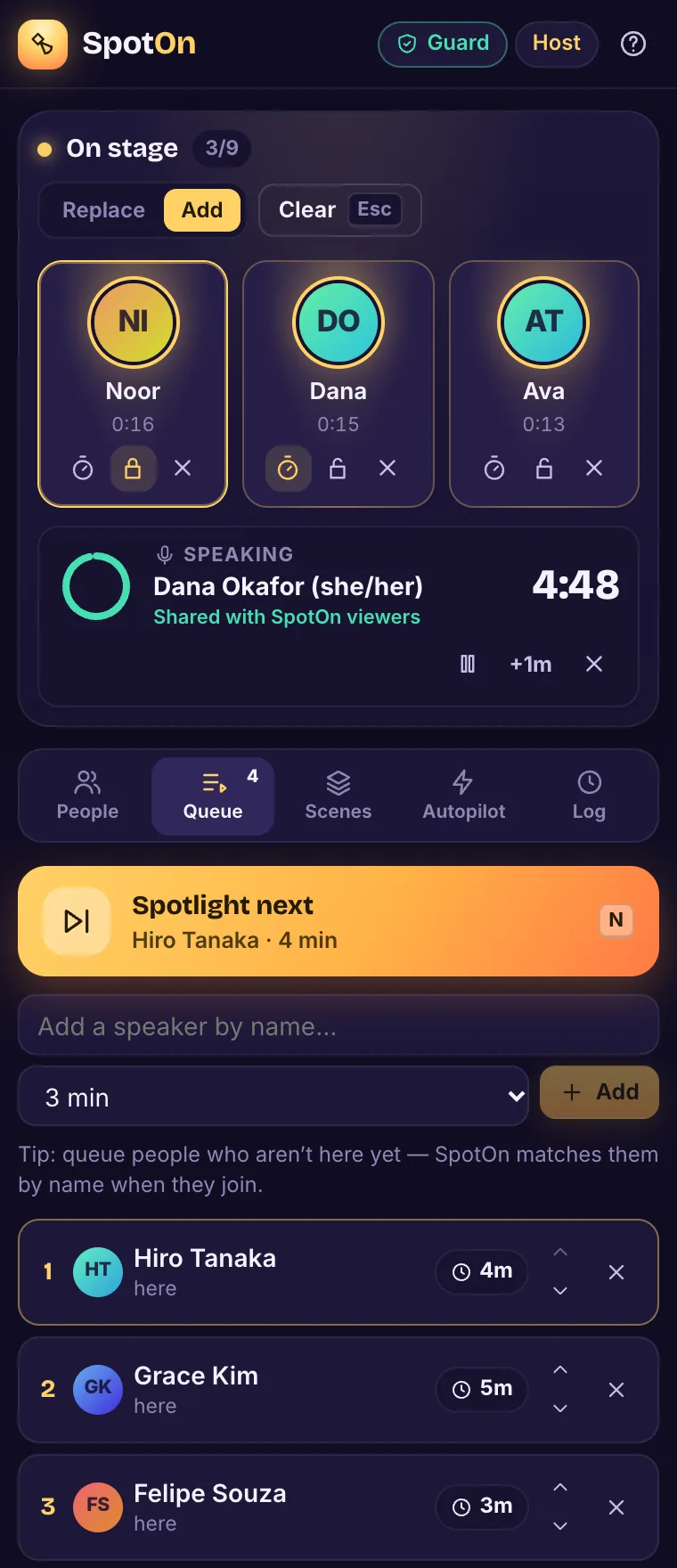
The limit is who sees the countdown. Share the timer in SpotOn shows a badge only to participants who have SpotOn open. Anyone else, including a speaker who hasn't opened it, won't see a thing. The guide's other option, Announce in meeting chat, posts "Now speaking" and "Up next" in the chat so everyone knows who's on. It doesn't post the time left.
Each spotlight still follows Zoom's own rules for spotlighting on Zoom, and some Zoom versions limit what co-hosts can spotlight.
Which timer should you use?
- You only need to watch the clock yourself: use meeting timers.
- One clock for everyone, or a simple series of speakers: use Zoom's Timer app.
- Speakers need a clock the audience can't see, or a crew needs to send them messages: use Stagetimer.
- You're already moving the spotlight by hand between speakers: try SpotOn, which you can run from a side panel in your meeting.
You don't need SpotOn if nobody is being spotlighted. You also don't need it if your speakers must see a countdown and won't open a Zoom App, because the badge won't reach them. Zoom's Timer or Stagetimer fits both cases better.
For a webinar, do a test run with a second device. Zoom's listing says Timer works in webinars, but its help article doesn't cover them. Our Zoom webinar vs meeting comparison explains how the two formats differ.
Frequently asked questions
How do I activate the timer in Zoom?
In the desktop app, go to Settings, then Meetings & webinars, and turn on Show meeting timer. It shows in the top right of your next meeting. For a countdown others can see, add the Timer app from the Zoom App Marketplace.
Is there a timer app for Zoom?
Yes. Zoom makes one called Timer, with a countdown, a stopwatch, an optional alarm and a queue of timers. Other companies also list timer apps on the Zoom App Marketplace, so check what each one does and costs before you add it.
Can everyone see the Zoom timer?
Not the meeting timers, which Zoom says are only visible to you. The Timer app has a Show timer to all toggle, so you choose between only you and all participants.
Why can't I find the timer in my meeting?
Check that Show meeting timer is on in your desktop settings. Time remaining won't appear for instant meetings or your Personal Meeting Room, because they have no scheduled length. If Timer itself is missing, your admin may need to approve the app, or your client may need an update.
Does Zoom have a timer for each speaker?
Zoom's Timer app can queue a series of timers, one per speaker if you like, and you move through them as each person finishes. Each timer is seen by only you or by all participants. Zoom's help article doesn't list an option for just the speaker and the host.
Can a Zoom timer mute a speaker when time is up?
Zoom's pages for the Timer app don't describe muting anyone, and SpotOn's guide doesn't either. Plan for the host or a co-host to step in when time runs out, and tell speakers beforehand how you'll handle it.
Does SpotOn's countdown show to everyone in the meeting?
No. The countdown badge shows only to participants who have SpotOn open. SpotOn's chat announcements reach everyone, but they say who is speaking and who is next, not how much time is left.