Can you spotlight multiple speakers in Zoom? Yes, up to 9
Yes, you can spotlight multiple speakers in Zoom, up to 9 at once. Spotlight the first person with Spotlight for everyone, then choose Add spotlight for each of the others. Choosing Replace spotlight instead takes everyone else off stage.
How many people can you spotlight on Zoom?
Nine at once, in meetings and webinars. Zoom's spotlight article says the host or a co-host can make up to 9 participants the primary speakers for everyone. The other participants stay visible at the top of the meeting window.
The usual rules apply first. A meeting needs 3 or more participants with video on. A webinar needs 2 or more panelists, at least one with video on, and spotlight isn't available in the webinar backstage. For the first spotlight and the mobile steps, see how to spotlight on Zoom.
Add spotlight or Replace spotlight?
Once someone is spotlighted, there are two ways to put the next person on stage.
| Option | What happens | Use it when |
|---|---|---|
| Add spotlight | The new person joins everyone already on stage | You're building a panel |
| Replace spotlight | The new person stays on stage and everyone else comes off | One speaker hands over to the next |
Zoom's article documents Add spotlight but doesn't describe Replace, so that row comes from hosts. One host in the Zoom Community planned to swap a sign language interpreter out of a panel with Replace, and found it removed every spotlight and left only the new person. Nothing in the thread or Zoom's article shows a way to choose who gets replaced.
To swap one person out of a panel, remove that person's spotlight, then add the new person. If several people need to stay visible through every change, keeping an interpreter on screen covers that setup.
Does the order matter?
The order of clicks matters in one way. The first person gets Spotlight for everyone, and each person after that gets Add spotlight.
Zoom's spotlight article gives no way to set where each person appears on screen, or to make one person's video larger than the others. If the keynote has to look bigger than the panel, plan on spotlight not doing that.
To clear the stage in one go, click View in the top-right corner of the meeting window, then Remove all spotlights.
Multi-speaker view is a different feature
Multi-speaker view enlarges whoever is talking, up to 4 people, and shows everyone else in a smaller gallery below. With 4 or fewer participants, you get gallery view instead. It needs the desktop app on Windows or macOS, version 6.0.0 or higher.
It doesn't work together with spotlight. Zoom says spotlight isn't supported in this layout because it takes control of the layout for all participants. Multi-speaker view suits an open discussion. Multi-spotlight suits a panel you've chosen in advance.
What happens during screen share
You can spotlight during screen sharing, and Zoom confirms that much. What each viewer sees depends on the layout they've picked for shared content, such as Standard or a side-by-side option. Zoom's articles don't say how a full panel of spotlighted people is arranged in each one, so rehearse with slides up and a second device joined as a participant.
Check again when the share ends. A host reported in 2023 that some participants saw gallery view instead of the spotlighted speaker, and that it seemed to happen right after a screen share ended. If your stage looks wrong after slides, why Zoom spotlight stops working goes through the causes.
What shows up in recordings
The recording can differ from what the audience saw. Zoom's recording layouts article sets out these rules:
| Situation | Cloud recording | Computer recording |
|---|---|---|
| 1 person spotlighted | Not captured in the gallery view recording | Captured in Speaker view |
| 2 to 9 people spotlighted | Captured in the gallery view recording | Captured in Speaker view |
| Someone sharing a screen | Shared content, plus only the active speaker if tiles are recorded | Shared content as the person recording sees it |
Two things follow for a panel with slides:
- Turn on a gallery view recording layout in the Zoom web portal before the meeting starts. Changes made after it begins don't apply.
- Expect the panel to disappear from a cloud recording while slides are up, because only the active speaker is captured during a share.
A computer recording follows the view of the person recording. If they switch to gallery view, the recording switches too. Make a short test recording with your real layout before the event.
When Zoom's own spotlight is enough
For a fixed panel in a single session, it is. Click Add spotlight a few times and you're done, with nothing to install.
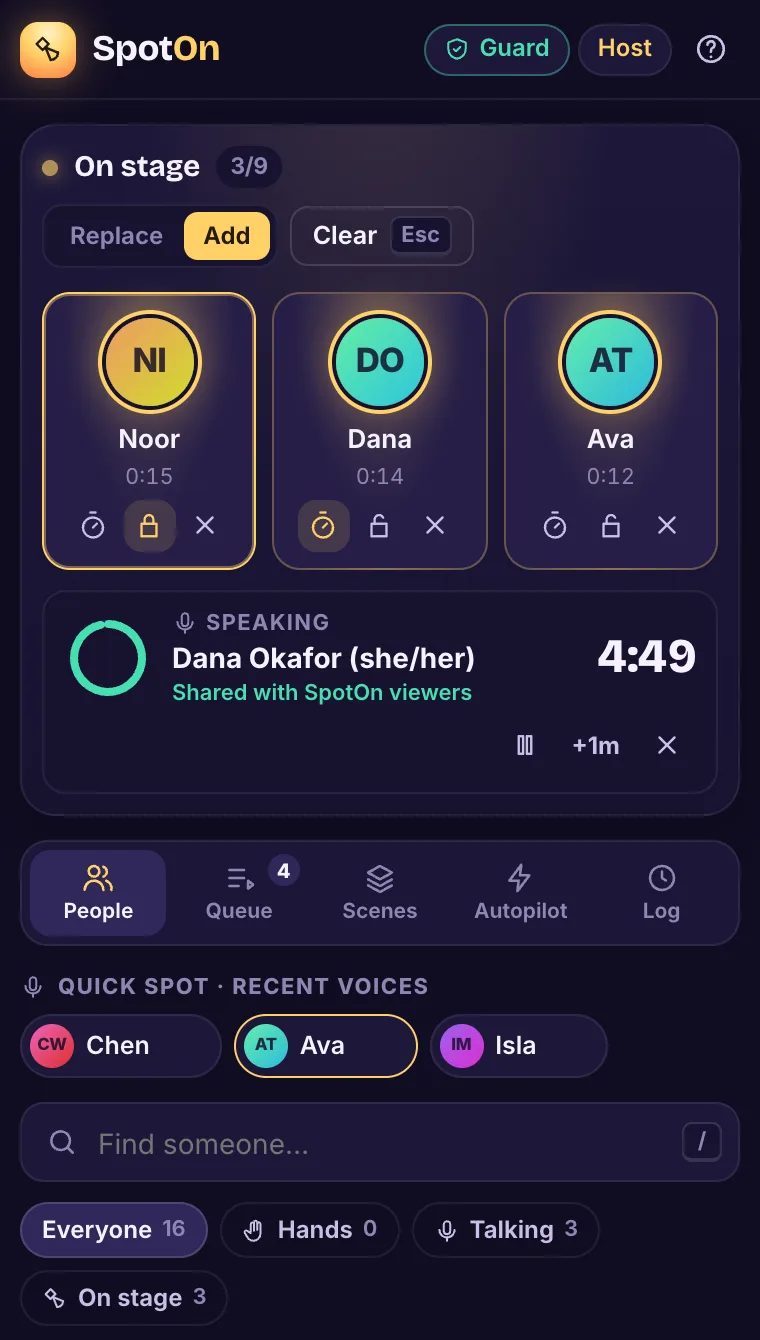
The work grows when the panel changes all event, or when an interpreter has to stay on stage while speakers rotate. SpotOn, our free Zoom App, puts Replace and Add on a visible switch and keeps the on-stage count in view. Locked people are built to stay on through Replace, Clear and scene changes. Scenes save a whole stage so you can restore it in one tap. It runs on the Zoom desktop client for Windows and macOS, and it follows Zoom's limit of 9 and the same recording rules. The SpotOn guide explains locks and scenes.
Frequently asked questions
Can I spotlight two participants on Zoom?
Yes. Choose Spotlight for everyone on the first person, then Add spotlight on the second. In a meeting, spotlight needs 3 or more participants with video on, so a call with only two people on camera won't offer it.
How many spotlights can you do on Zoom?
Nine at a time. Zoom applies the same limit of 9 to spotlights and to pins, though a pin only changes your own view. To bring in a tenth person, remove someone first.
How do I show all speakers on Zoom?
If you have 9 speakers or fewer, spotlight them so everyone's main view shows them. If you want to see all participants, gallery view shows their videos in a grid.
What is multi speaker view on Zoom?
It's a layout that enlarges up to 4 people who are currently talking and shows others in a smaller gallery below. It needs at least 5 participants and the desktop app on Windows or macOS, version 6.0.0 or higher. Zoom chooses who is enlarged based on who is speaking, and spotlight isn't supported in this layout.
Can a co-host add multiple spotlights?
Yes. Zoom's steps are the same for a host and a co-host, and you need to be assigned co-host first. If you're relying on a co-host to run the stage, try it in a rehearsal.
Does multi-spotlight work in a Zoom webinar?
Yes, up to 9 as in a meeting. The webinar needs 2 or more panelists, at least one with video on. Spotlight isn't available in the webinar backstage area.