Virtual event run of show template for Zoom
This virtual event run of show template is a minute-by-minute sheet for Zoom that names who spotlights, who runs chat and who watches the interpreter at every cue. Copy the table below or download the CSV, then swap the placeholder roles for your own people.
- The template, with a 60-minute example
- Who spotlights, who runs chat, who watches the interpreter
- What each Zoom role can do
- How to write cues people can follow in the moment
- Who watches the interpreter
- Backup cues to agree before the event
- Rehearse the sheet once
- Cutting it down for smaller events
- When SpotOn helps, and when you don't need it
- Frequently asked questions
The template, with a 60-minute example
This is a webinar run of show template for a panel with three speakers and two sign language interpreters. Roles are placeholders, so replace them with your own people. T-60 means 60 minutes before the audience's start time.
Download the run of show template as a CSV file. It has the same rows, plus columns for clock time, minutes, a time cue and a done tick. It opens in Excel and Google Sheets.
| Time | Segment and lead | On stage (Stage manager) | Chat and Q&A (Chat lead) | Interpreter (Interpreter watcher) | If it goes wrong |
|---|---|---|---|---|---|
| T-60 | Crew check (Host, 15 min) | Before starting, Host checks the cloud recording layout. Host then makes Stage manager and Chat lead co-hosts. Stage manager runs one test spotlight. | Host sets who attendees and panelists can chat with. Crew opens its private channel. | Watcher confirms each interpreter has a join link, speaker names and slides. | Host can't join: alternative host starts the session. |
| T-45 | Speaker and interpreter check (Stage manager, 30 min) | Spotlight each speaker once. Fix display names now. | Chat lead sends each speaker a test message. | Watcher checks each interpreter's video. Agree the swap signal. | Speaker missing: phone them and decide who moves up. |
| T-15 | Final checks (Host, 10 min) | Clear the stage. Stage manager reads the opening line-up back to the crew. | Chat lead has the welcome text and links ready to paste. | Host confirms interpretation is set up, on the desktop client. | Late change of speaker: update the sheet and tell the crew. |
| T-5 | Doors open (Host, 5 min) | Moderator and Interpreter 1 on stage. Holding slide up. | Chat lead posts the welcome and how to get help. | Host starts interpretation. Watcher confirms it's live. | Attendees can't get in: Chat lead sends the correct link by email. |
| T+0 | Welcome and housekeeping (Moderator, 5 min) | Moderator and Interpreter 1. Host confirms recording is running. | Chat lead posts how to ask questions. | Watcher confirms Interpreter 1 is visible. | Moderator drops: Host takes over until they return. |
| T+5 | Speaker A (Speaker A, 10 min) | Replace Moderator with Speaker A. Interpreter 1 stays. | Chat lead collects questions for later. | Watcher keeps eyes on Interpreter 1. | Speaker A drops: Moderator back on stage. Re-spotlight Speaker A on return. |
| T+15 | Speaker B (Speaker B, 10 min) | Replace Speaker A with Speaker B. Swap Interpreter 1 for Interpreter 2. | Chat lead collects questions for later. | Watcher gives the swap signal and confirms Interpreter 2 is on. | Swap misses: Interpreter 1 stays on until Interpreter 2 is ready. |
| T+25 | Speaker C with slides (Speaker C, 10 min) | Replace Speaker B with Speaker C. Interpreter 2 stays. When the share ends, check the stage. | Chat lead posts the slide link after the talk. | Watcher checks Interpreter 2 is still visible during the share. | Share fails: Host shares the backup copy of the slides. |
| T+35 | Panel discussion (Moderator, 15 min) | Add Moderator, Speaker A and Speaker B. Five on stage with Speaker C and Interpreter 2. | Chat lead sends the Moderator one question at a time, privately. | Watcher gives the swap signal at the agreed point. | Panelist drops: carry on with the rest and re-spotlight on return. |
| T+50 | Audience Q&A (Moderator, 7 min) | Keep Moderator and interpreter on. Add or remove speakers as they answer. | Chat lead picks questions from Q&A and sets the rest aside for follow-up. | Watcher asks Moderator to repeat a question if the interpreter signals. | Too many questions: Chat lead says answers will follow by email. |
| T+57 | Close (Moderator, 3 min) | Moderator and interpreter only. | Chat lead posts the follow-up link. | Watcher confirms the interpreter stays on until the last word. | Running long: cut the last question and protect the end time. |
| T+60 | Stop and debrief (Host, 10 min) | Remove all spotlights. Host stops recording and ends the session. | Host saves the chat. | Host ends interpretation. Ask interpreters what to change next time. | Recording missing: tell the team before anyone promises a replay. |
Read the sheet across, and you'll get the whole moment. Read one column down, and you'll get one person's whole job. That second view is what the crew uses during the show.
Who spotlights, who runs chat, who watches the interpreter
Give each job to one named person before you write any times. A host reading an introduction aloud is in no position to hunt for a name in a participant list that keeps moving.
| Role in the sheet | Zoom role to give them | What they own |
|---|---|---|
| Host | Host | Starts the session, makes co-hosts, starts interpretation and ends the session |
| Stage manager | Co-host | Every spotlight change, and nothing else during the show |
| Chat lead | Co-host | Chat, Q&A, links, and feeding questions to the moderator |
| Interpreter watcher | Panelist or co-host | Watches that the interpreter is visible and working, and calls swaps |
| Timekeeper | Panelist | The clock and private time warnings. Can double as chat lead |
| Moderator | Panelist | Speaks on air and hands from one speaker to the next |
| Speakers A, B, C | Panelist | Their segment, their camera, their slides |
| Interpreters 1, 2 | Assigned as interpreters | Interpreting, and telling the watcher when something blocks them |
One host in the Zoom Community described this exact bind: a small staff, several speakers and a panel, and a meeting host who would already be busy advancing slides. The replies pointed to practice runs and to making one or two people who know Zoom co-hosts.
Our view is that spotlighting deserves its own person whenever speakers rotate. A structured event needs someone watching the stage, and a host who is also speaking can't do that.
If you're short on people, combine timekeeper and chat lead first. Keep the stage manager separate from anyone who speaks on air. If you have an interpreter, the watcher can be the chat lead on a small event, but not the stage manager, because both jobs need eyes on the video at the same moment.
Give co-host only to people who need it. Every extra co-host is one more person who can mute the wrong speaker.
What each Zoom role can do
A cue is only useful if the person who owns it has the permission. These come from Zoom's webinar roles article.
| Task in a Zoom webinar | Host | Co-host | Panelist |
|---|---|---|---|
| Spotlight a video | Yes | Yes | No |
| Promote an attendee to panelist | Yes | Yes | No |
| View and answer Q&A | Yes | Yes | Yes |
| Create or edit polls | Yes | No | No |
| Start a poll | Yes | Yes | No |
| Record to the cloud | Yes | Yes | No |
Four limits shape the sheet:
- You can't assign a co-host ahead of time. The host promotes them during the session, so that's the first cue on the sheet.
- Co-hosts can't start a meeting or webinar scheduled by the host. If you need a backup, name an alternative host when you schedule.
- Only the host makes someone a co-host, so promote your crew as soon as they arrive.
- Only the host can start interpretation, and only from the desktop client.
In a meeting, everyone joins as a participant rather than a panelist or attendee, and the host still promotes co-hosts live. If you haven't chosen a format yet, read how a Zoom webinar differs from a meeting first, because it decides what the Time and On stage columns can do.
How to write cues people can follow in the moment
Write each cell as an instruction to one person. "Replace Speaker A with Speaker B. Interpreter 1 stays." can be acted on in two seconds. "Transition to next speaker" can't.
- Name who goes on and who stays, every time. The stage manager should never have to work out the line-up.
- Write the trigger when it isn't the clock. Panels run on words, for example "when the moderator says thank you".
- Count the stage. Zoom allows up to 9 people in spotlight, and a meeting needs at least 3 participants with video on. A webinar needs at least 2 panelists, one with video on. Our guide on how to spotlight on Zoom has the steps.
- Decide the private channel. In a webinar, the host can let panelists send direct messages to each other. Use that or a group text for time warnings, so nothing lands in the audience's chat. Our guide to Zoom timers has options for a visible countdown.
- Agree the moderator's words for each handoff. Our guide to moderating a panel discussion on Zoom has more on running the conversation.
Set the recording cue early. Zoom says cloud recordings capture up to 9 spotlighted participants in the Gallery View recording layout, so the host should check that setting before starting the session if you want the recording to match the stage.
Who watches the interpreter
Name one person whose only question is whether the interpreter can be seen and can work. Interpreters can't easily flag a problem while they are interpreting, so the watcher does it for them.
Zoom gives you two ways to show a sign language interpreter, and the sheet changes with each.
- Zoom's sign language interpretation feature gives participants a video channel they can choose, move and resize. You enable it when scheduling, you can name up to 20 interpreters, and the host starts it from the desktop client. Interpreters' microphones stay muted unless the host allows them to talk. Zoom recommends they turn off video when they aren't the active interpreter, so write that into the swap cue.
- Spotlighting puts the interpreter on the main stage for everyone, including people who didn't select a channel. It uses one of the 9 places, and every Replace needs to leave the interpreter on. That's why the On stage column says "Interpreter 1 stays" each time.
Ask your interpreters and your Deaf attendees which they prefer, and rehearse that one. Zoom doesn't provide sign language interpreters, so booking them is your job, and they need names, slides and the run of show well before the event.
For spoken language interpretation, the column still applies. The host starts it from the desktop app, it can't be used with a Personal Meeting ID, and in a webinar each language interpreter is automatically made a panelist. Check the audio channels instead of the video.
Backup cues to agree before the event
Each row in the template has one fallback. These are the ones worth saying aloud in rehearsal, because they need a decision that nobody should be making live.
| What happens | Who acts | The cue to agree now |
|---|---|---|
| Spotlight disappears | Stage manager | Put the current line-up back from the sheet. Tell nobody on air unless attendees notice. |
| Speaker's camera is off | Stage manager | Zoom's spotlight steps start from the person's video, so message them to start video first. |
| Speaker drops and rejoins | Stage manager | Move the moderator on stage, then check the stage again when the speaker is back. |
| Interpreter drops | Interpreter watcher | Bring on the second interpreter and tell the moderator to pause if there is a gap. |
| Host loses connection | Alternative host | Name the alternative host when you schedule. Interpretation is managed by the host, so agree who tells the interpreters what is happening. |
| Segment overruns | Timekeeper | Name the segment that gets cut, so nobody decides on air. |
Rehearse the sheet once
In a webinar, use a practice session. Only the host, alternative hosts and panelists can join, and panelists must use their own join link or sign in with the email they were invited with, otherwise they arrive as attendees. It can run days ahead without changing the scheduled start. When you're ready on the day, the host clicks Start webinar and attendees can come in.
In a rehearsal, run the transitions, not the talks:
- Walk through each On stage cell in order, with the real people.
- Have the speaker with slides start and stop sharing, then check the stage.
- Run one interpreter swap with the agreed signal.
- Make a short recording and watch it back.
- Change the sheet wherever someone hesitated.
If you use Webinar Backstage, note that Zoom doesn't offer spotlighting while you're in the backstage area, so rehearse spotlight cues somewhere else.
Cutting it down for smaller events
A virtual event run of show should be as short as the event allows.
- One speaker and a host: delete the On stage and Interpreter columns if nobody rotates. Keep time, segment, chat and the fallback.
- A class or a workshop: keep Time, Segment and Lead, and add a column for breakouts or polls if you use them.
- A public meeting with timed comments: replace the speaker rows with one row per commenter, and let the timekeeper's column do the work.
- A multi-session day: use one sheet per session, plus a single sheet for the handovers between them.
When SpotOn helps, and when you don't need it
You don't need SpotOn if your speakers don't rotate, or if a dedicated stage manager is comfortable in Zoom's own menus and the changes are slow. Zoom's Spotlight for everyone and Add spotlight are enough, and this sheet works without any app.
SpotOn is built for the On stage column when it gets busy. It is a free Zoom App for hosts and co-hosts on the Zoom desktop client for Windows and macOS. The Queue holds speakers and minutes in order, added before they join, and N spotlights the next one. A padlock keeps a moderator or interpreter on stage through Replace, Clear and scene changes, which is the "Interpreter 1 stays" cue. Stage Guard is built to return locked people and the current speaker if they drop and rejoin.
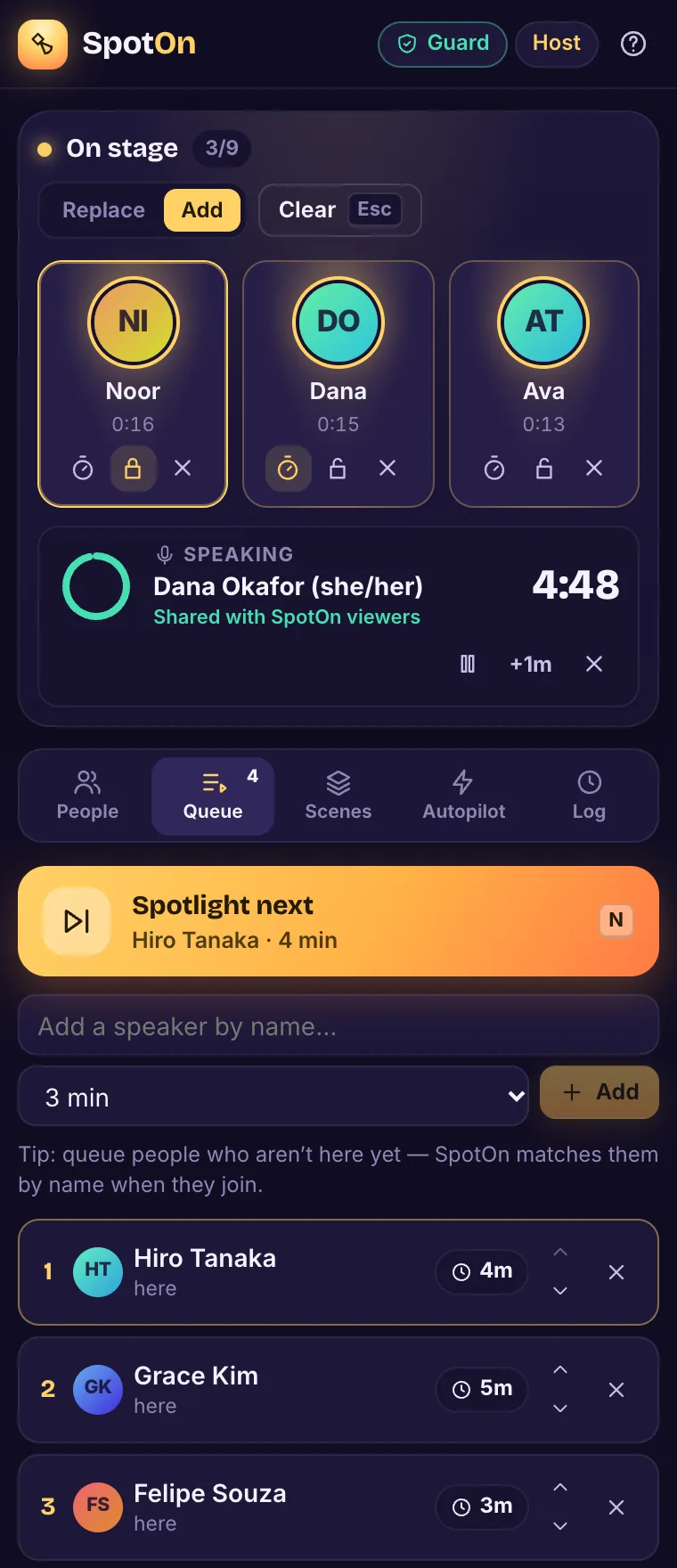
Two limits matter for your sheet. The countdown is visible only to participants who have SpotOn open, so keep private time warnings for everyone else. Queues and settings live on one computer, so set them up on the machine your stage manager will use. The SpotOn user guide explains the Queue, locks and timers.
Frequently asked questions
What is the difference between a run of show and an agenda?
An agenda tells attendees what's coming. A run of show tells the crew what to do at each moment, who does it, and what happens if it fails. Attendees never need to see it.
How detailed should a run of show be for a virtual event?
Detailed enough that a stand-in could pick up a column and do the job. For Zoom, that means naming who is on stage at each change and who owns chat, time and recording. If a cell needs explaining in a meeting, rewrite it.
Can I assign co-hosts before a Zoom event starts?
No. Zoom says the host has to promote someone to co-host during the session. If you need someone with those controls who can also start the event, name an alternative host when you schedule.
Who can spotlight in a Zoom webinar?
The host or a co-host. Panelists and attendees can't. If your stage manager joins as a panelist, the host needs to make them a co-host before the first spotlight cue.
Can one person run a Zoom event alone with this template?
For one speaker, yes, if you cut the sheet down and keep chat simple or turn it off until you're ready. Once speakers rotate or an interpreter is involved, try to find a second person for the stage.
How do I open the run of show CSV in Google Sheets or Excel?
In Excel, open the downloaded file directly. In Google Sheets, create a blank sheet and use File, then Import, and upload the file. Save it in your usual format so your edits and colors stay.